When building 3D experiences for the web, textures are everywhere. A simple 3D object can have a color texture, a normal map, a roughness map, a metalness map and environment textures.
But sometimes you may notice strange problems: textures look blurry, distant objects flicker, patterns look noisy, or performance drops because textures are too expensive. Many of these problems are related to two important concepts: mipmaps and texture filtering. Let's understand them in a simple, practical way.
1. How does WebGL display a texture?
Imagine a 1024×1024 image applied to a 3D cube. When the camera is close, the cube covers about 800×800 pixels on screen — everything looks good. But when the camera moves far away, the cube covers only 50×50 pixels while the texture is still 1024×1024.
Now WebGL has a problem: "How do I convert a huge image into a very small number of pixels?" This process is called texture sampling.
2. What is texture filtering?
Texture filtering is the method WebGL uses to decide which texture pixels to use for each final screen pixel. For example, one screen pixel may fall between four texture pixels, and WebGL needs to calculate the final color. Different filtering methods create different results.
3. Nearest filtering
The simplest method: WebGL picks the closest pixel.
texture.magFilter = THREE.NearestFilter;It is very fast and creates a pixel-art style, but it looks blocky. Common uses: pixel games, retro graphics and data textures.
4. Linear filtering
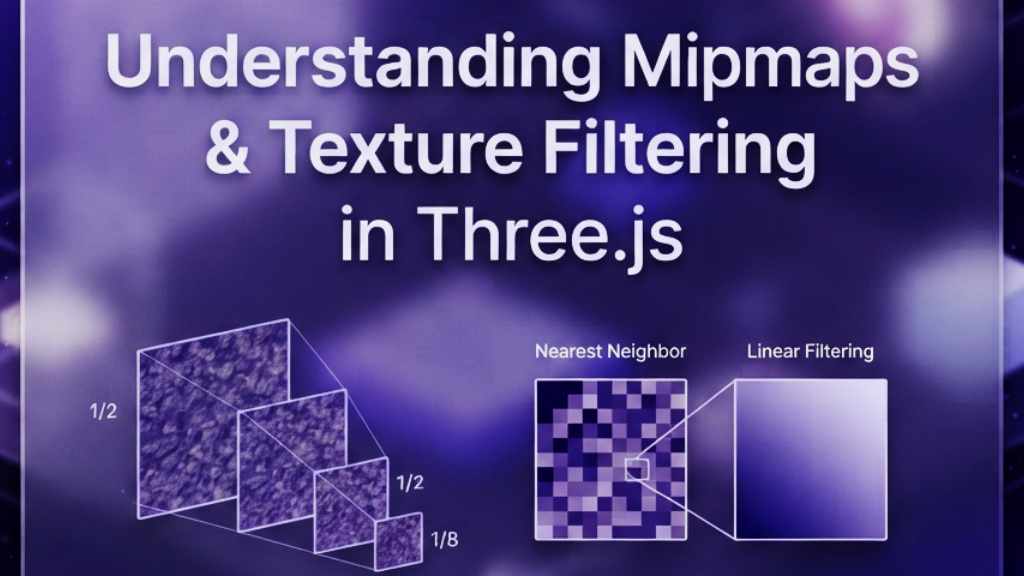
Instead of choosing one pixel, WebGL blends nearby pixels — a red pixel next to a blue pixel produces purple.
texture.magFilter = THREE.LinearFilter;The result is smoother, which is usually what we want for realistic 3D graphics.
5. The problem with distant textures
Filtering solves one problem, but another appears. Imagine a brick wall that covers only 20 pixels on screen while the GPU still reads from the original 2048×2048 texture. This creates shimmering, aliasing and noisy patterns. This is where mipmaps help.
6. What is a mipmap?
A mipmap is a collection of smaller versions of the same texture:
Level 0: 2048 × 2048
Level 1: 1024 × 1024
Level 2:  512 × 512
Level 3:  256 × 256
Level 4:  128 × 128
Level 5:   64 × 64
Think of it as having different quality versions of the same image.
7. How does WebGL use mipmaps?
When the object is close, the GPU uses the 2048×2048 level. When it is far, it uses something like 128×128. The GPU chooses the right version automatically.
Benefits: ✅ better quality, ✅ less GPU work, ✅ less flickering, ✅ better performance.
8. Mipmap filtering in Three.js
Three.js enables mipmaps automatically for most textures:
const texture = textureLoader.load("/textures/wood.jpg");
// By default:
texture.generateMipmaps = true;
The default minification filter is THREE.LinearMipmapLinearFilter, which means: use mipmaps, blend between mip levels and create smooth transitions.
9. Controlling filtering in Three.js
A common setup:
const texture = loader.load("/textures/ground.jpg");

texture.wrapS = THREE.RepeatWrapping;
texture.wrapT = THREE.RepeatWrapping;

texture.minFilter = THREE.LinearMipmapLinearFilter;
texture.magFilter = THREE.LinearFilter;minFilteris used when the texture becomes smaller on screen (large object → small object).magFilteris used when the texture becomes larger on screen (small texture → zoomed object).
10. When should you disable mipmaps?
Mipmaps are great, but not always. Dynamically generated textures — canvas textures, render targets, decal compositors, UI textures on 3D objects — can suffer from unwanted bleeding. If you draw a red logo on a white background, the smaller mip levels mix red and white pixels and the logo edges become blurry. In these cases:
texture.generateMipmaps = false;
texture.minFilter = THREE.LinearFilter;
11. Real example: canvas texture in Three.js
const canvas = document.createElement("canvas");
const texture = new THREE.CanvasTexture(canvas);

texture.generateMipmaps = false;
texture.minFilter = THREE.LinearFilter;
texture.magFilter = THREE.LinearFilter;
This is useful for labels, dynamic text, custom drawings and decals.
12. A simple rule to remember
For most 3D models:
texture.generateMipmaps = true;
texture.minFilter = THREE.LinearMipmapLinearFilter;
texture.magFilter = THREE.LinearFilter;
For dynamic textures:
texture.generateMipmaps = false;
texture.minFilter = THREE.LinearFilter;
Final Thoughts
Mipmaps and filtering are not just performance settings. They directly affect visual quality, GPU performance, texture sharpness and user experience. The next time you see flickering textures, blurry details or strange edges, remember: the problem might not be your model. It might be how WebGL samples your textures.