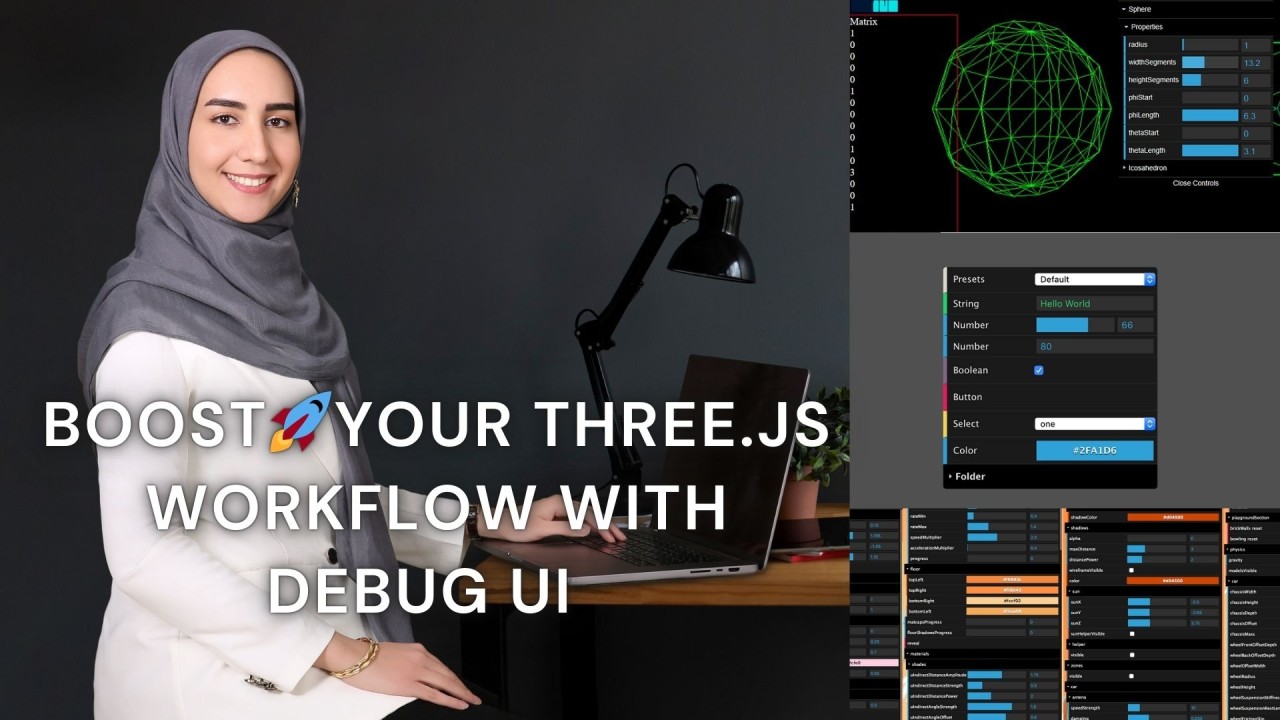
Have you ever been stuck in an endless cycle of tweaking parameters in your Three.js project, reloading the scene and waiting to see the result? You're not alone. Real-time adjustments and debugging can transform your workflow and save hours of development time — and this is where a debug UI becomes a game-changer.
In this article we look at the advantages of a debug UI in Three.js projects, the popular tools, and practical use cases to get you started.
What is a debug UI?
A debug UI is a graphical interface that lets you change parameters in your Three.js scene on the fly. Instead of editing code to adjust light intensity, object position or material properties, you use sliders, color pickers and checkboxes and see the changes instantly. Debug UIs streamline development, simplify debugging and enable quick experimentation — for developers and designers alike.
Why use a debug UI in Three.js?
- Real-time adjustments: change lighting, camera settings or object transforms without reloading the project.
- Higher productivity: less time spent on repetitive code changes and iterations.
- Better debugging: test specific parts of the scene, isolate issues and see parameter changes directly.
- Collaborative design: designers and stakeholders can tweak visuals without touching code.
- Organized workflow: group controls into logical folders for large scenes or complex projects.
Popular debug UI libraries for Three.js
- dat.GUI — the classic choice for Three.js developers: lightweight, easy to set up, with sliders, dropdowns and color pickers.
- lil-gui — a modern, faster alternative to dat.GUI with a smaller footprint and similar functionality.
- Tweakpane — an advanced UI with preset saving and graphical controls, ideal for projects that need more customization.
- Leva — built for React-based Three.js projects, with a clean and flexible API.
👌 How a debug UI improves your workflow
- Tweaking object properties: adjust position, rotation and scale dynamically — for example, aligning a light with a model.
- Material and texture adjustments: modify color, roughness and metalness to get the perfect look.
- Lighting and environment settings: change light intensity, position or color, and experiment with fog and skyboxes.
- Camera controls: fine-tune the field of view, position and near/far clipping planes.
Conclusion
Debug UIs are an essential tool for any Three.js developer. They improve productivity and enable creativity and collaboration in ways static code adjustments can't match. Start with a library like dat.GUI or lil-gui, then explore advanced tools like Tweakpane to unlock the full potential of your Three.js projects.
My favorite is lil-gui. Which debug UI tools have you used in your projects?